Gather files from anywhere into visual shelves; the originals never move. Give each shelf a deadline and a to-do list, and when you’re ready, hand it to Claude Code or Codex.
Free download · macOS 26 or later · Mac with Apple silicon
Works beautifully with
Finder
iCloud Drive
Quick Look
Claude Code
Codex
Claude app
MCP
Product names belong to their owners: Apple, Anthropic and OpenAI. They appear here only to show that WhereIs is adapted to work with these tools and agent workflows. WhereIs is not affiliated with, partnered with, sponsored or endorsed by any of them.
A new way to organize
Organize by event, not by location.
Folders sort files by where they were saved, so one project ends up spread across Desktop, Downloads, Mail and iCloud. WhereIs gives each task, project or deadline its own shelf, with every file it needs and the plan beside it. That’s also exactly the context you want to hand an AI agent.
The old way
Folders by location
Files stay wherever they were saved, split up by app and type.
Claude Code~/WhereIs/Northwind Rebrand6 files + plan
One event, one shelf, wherever the files live
Originals stay put, and a file can sit on several shelves
The deadline, to-dos and notes stay with the files
Hand the shelf to an agent: exactly these files, and the plan
Built for the way agents work
Start with the eventMake a shelf for the client project, the launch or the thesis.
Gather and planPull in files from anywhere, then add a deadline and to-dos.
Hand it to an agentClaude Code or Codex works in the shelf’s own folder, with its files and plan at hand.
Results come backNew files land on the shelf with the agent’s badge. Changes to originals wait for you.
References, not copies
Gather, don’t copy.
A shelf keeps a reference to each file and folder. Pull them in from your Desktop, Downloads, iCloud Drive and project folders, and every original stays exactly where it was.
Always found
Moved it? Renamed it? Still on the shelf.
Organize by what you’re working on, not by where files live. When an original is moved or renamed in Finder, its shelves follow it. No broken links. No re-sorting.
One file can sit on several shelves
Double-click to open the original
Folders and ZIP archives work too
Drag and drop
Just drag it in.
Drop files and folders from Finder onto any shelf, or press ⌘O to choose them. Go on, try it: drag a file onto a shelf below.
Drag a file onto a shelf
Search and sort
Find any file across every shelf.
Type a few letters and matching files and shelves appear instantly. Sort each shelf by hand, by name or by last opened, or put AI-created files first.
Deadlines and to-dosPRO
Every shelf can have a plan.
Give a shelf a deadline and a to-do list. A bar beside its name fills and changes color as the date nears, reminders arrive when you choose, and checked-off to-dos slip into the Logbook.
A deadline you can see
Set a start, a due time and reminders. The bar runs from calm green to amber, then orange on the last day. Mark it done or postpone it right from the notification.
To-dos, done quickly
Each to-do takes notes, a due day, a flag and checklist steps. Drag to reorder, ⌘K to check off; done ones wait three seconds, then move to the Logbook.
Everything at a glance
A tab on each shelf in the sidebar shows its description, open to-dos, tags and countdown. Sort shelves by deadline, too.
If your membership ends, existing deadlines and to-dos stay and still remind you. You can check them off or clear them; adding and editing need WhereIs Pro.
Tags, folders and highlights
Group it. Label it. Highlight it.
Say what a shelf is for with a description and tags. Drag a box around files and press ⇧⌘G to group them in a virtual folder. Nothing moves on disk.
Tags and descriptionsFREEUp to five tags per shelf, and a description your agents read too.
Virtual folders2 FREEPROGroup items inside a shelf and drag them in and out. WhereIs Pro has no limit.
HighlighterFREESeven colors for any file or folder, from lemon to peach.
Select many at onceFREE⌘-click, ⇧-click, ⌘A or drag a box, then move, copy, share or group them together.
Unassigned shelf
Park it now. Sort it later.
Choose Add to Unassigned Shelf in the Share menu of Finder or any app. Files wait in a panel beside the window until you drag them onto their shelves.
Hold Control as you drag to copy, so one file sits on several shelves
Works between shelves too, and the originals never move
Free in every version, opens with ⇧⌘I
PROClaude Code & Codex
Hand a whole shelf to your AI.
Every shelf gets its own workspace folder. Drag a shelf onto Claude or Codex in the Dock and the agent gets to work right inside it. What it creates lands back on the shelf, marked with the agent that made it.
Claude and Claude Code belong to Anthropic; Codex belongs to OpenAI. Their names and logos appear here only to show that WhereIs is adapted for these agent workflows. WhereIs has no partnership with Anthropic or OpenAI, and isn't sponsored or endorsed by either.
Drag it to the Dock
Or open any shelf from its AI Workspace menu, or drop it into Terminal to paste its path.
See who made what
Files Claude Code or Codex create or edit carry its logo. While the agent is still editing, the ring turns.
MCP built in
Agents can search, read and organize your shelves, read Word and PDF files, and plan with your deadlines and to-dos.
Agents organize, you decidePRO
Let agents tidy up. Approve what matters.
Through WhereIs, Claude Code, Codex and the Claude app can file your Unassigned items, group and highlight, tag shelves, and read or add your to-dos and deadlines. Organizing only changes references, and anything that touches files on disk waits for you.
Preview, then undo
Agents can preview any change with a dry run. Every change is recorded and can be undone from the notice or in Settings.
You approve file changes
Renaming originals, making copies, exporting and archiving wait at the bottom of the window: Deny, Allow, or Allow for 15 Minutes.
Choose how far AI goes
Search and Read Only, Organize Shelves, or Organize and Ask Before File Changes. The choice stays on this Mac.
The Claude app, too
Export the WhereIs extension from Settings and double-click it to add WhereIs to the Claude desktop app.
WhereIs doesn’t include an AI model or credits. Claude Code, Codex and their accounts are separate.
Whole-shelf actions
Copy, move or zip a whole shelf.
Save every file on a shelf into a new folder, or compress them into one ZIP. You always choose where it goes first, and existing files are never replaced.
Copy to a new folderPROThe originals stay where they are.
Move to a new folderPROThe shelf follows the files to their new home.
Undo, shelf by shelfPROEach shelf keeps its own last move, even after a restart. Keep the copies or move everything back.
Compress to ZIPPROEvery file on the shelf in one archive, ready to send.
Try it in your browser
WhereIs, right on this page.
A working copy of the WhereIs window with every Pro feature unlocked. Make shelves, drag files between them, add tags, deadlines and to-dos, zip a whole shelf, then let an agent organize it while you approve what it asks for.
WhereIs 1.0Web previewPROAll Pro features unlocked
This is a simulation of WhereIs for Mac. The app itself is what counts: it may look and behave a little differently. Anything marked PRO needs WhereIs Pro in the app. Files you add from your Mac stay on your device; only their names are kept in this browser and nothing is uploaded. The agents here follow ready-made scripts, and WhereIs doesn’t include an AI model.
Made for a larger screen: open this page on a Mac or PC.
AppearancePROneeds WhereIs Pro in the app
Best on a Mac or a larger screen. On a touch screen, press and hold a file to drag it.
Things to try
Move or copyDrag a file onto another shelf. Hold ⌃ or ⌥ as you drop to copy it instead.
Plan a shelfPoint at a shelf’s name for description, tags, to-dos and a deadline.
Group and markDrag a box around files, press ⇧⌘G, then right-click one to highlight it.
Whole-shelf actionsOpen a shelf’s ⋯ menu and compress it to a ZIP, or move it and undo.
UnassignedOpen the tray at the top right, then drag waiting files onto shelves.
Hand it to an agentDrag a shelf’s name onto the console, pick a prompt, and approve or undo.
The Claude Code and Codex console on this page, and the Claude and ChatGPT apps in the simulated Mac, are fictional and for demonstration only. Their replies are scripted by WhereIs. They are not real responses from Claude, Codex or ChatGPT and do not represent the views or positions of Anthropic or OpenAI.
Make it yours
Light, dark, and colors that fit you.
Follow the system or pick a mode, choose Colorful or Graphite, and size shelves your way.
And thoughtfully more.
Your shelves on every Mac
Shelves, order, pins and archives sync through your own private iCloud. WhereIs never uploads the files themselves.
MNLAI
Four ways to sort
Manual, Name, Last Opened, or AI-created first. Each shelf keeps its own.
Pin what matters
Pin shelves to the top and files to the front of their shelf.
ZIP
ZIPs, handled
Compress and extract archives right from a shelf.
Archive, don’t delete
Tuck finished projects away and bring them back any time.
No account to create
Your library lives on your Mac and syncs through your private iCloud. There’s no WhereIs server.
⌃N⌘O⌘F
Keyboard friendly
⌃N new shelf, ⌘O add files, ⌘F find, ⇧⌘G group. Change any shortcut in Settings.
Native to the core
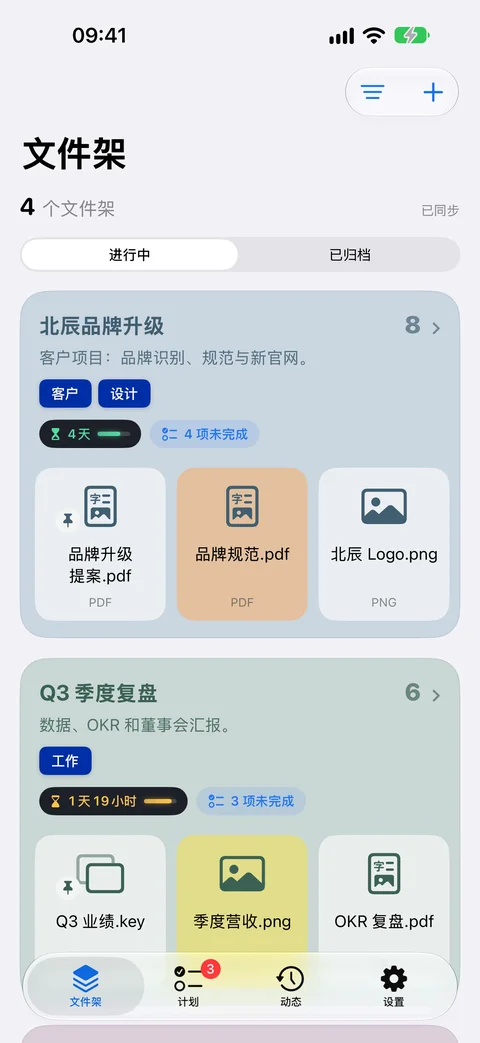
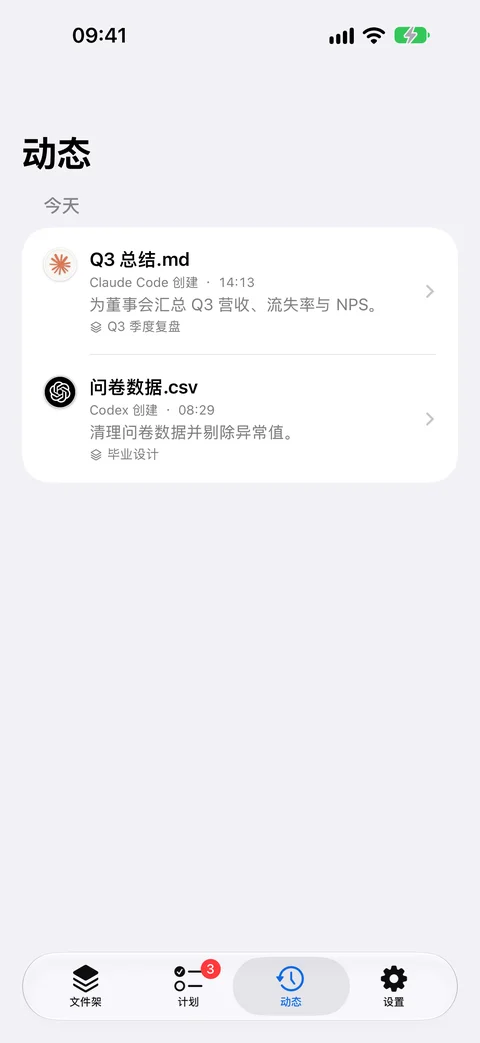
Built with SwiftUI and AppKit. Quick Look previews, real Finder drag and drop, English and 简体中文.
5Research2dThesis6
9dNorthwind Rebrand8
The sidebar at a glance
Each shelf shows its to-dos, tags and countdown. Drag shelves to reorder them.
Up to five rows
Expand a busy shelf, pinch to fold it back. Thousands of files stay smooth.
/Users/you/Thesis/Draft v3.pdf
Share and Copy Path
Share originals with the Mac’s own Share menu, or copy their paths, one per line.
Open at login
Your shelves are ready the moment you sign in. Turn it on in Settings.
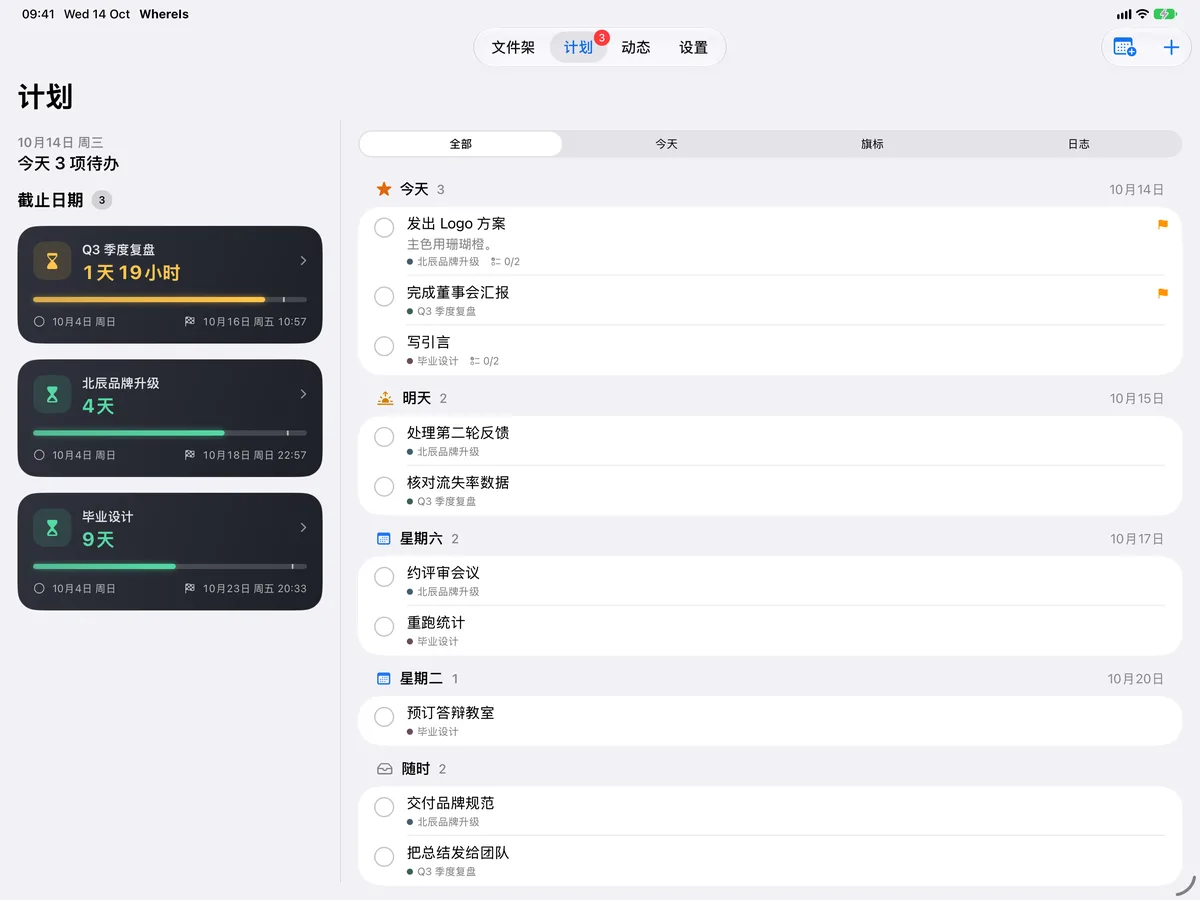
Coming soonWhereIs for iPhone and iPad
Your shelves and plans, wherever you are.
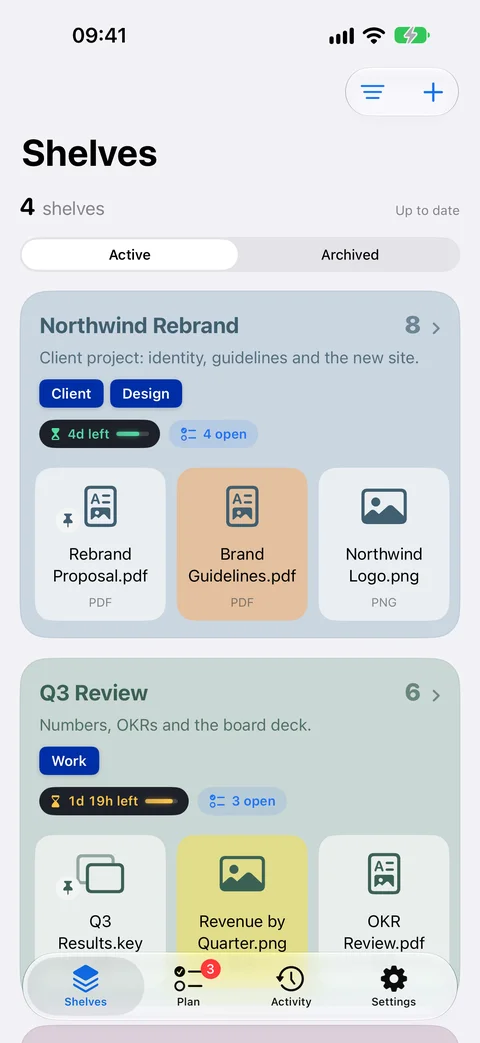
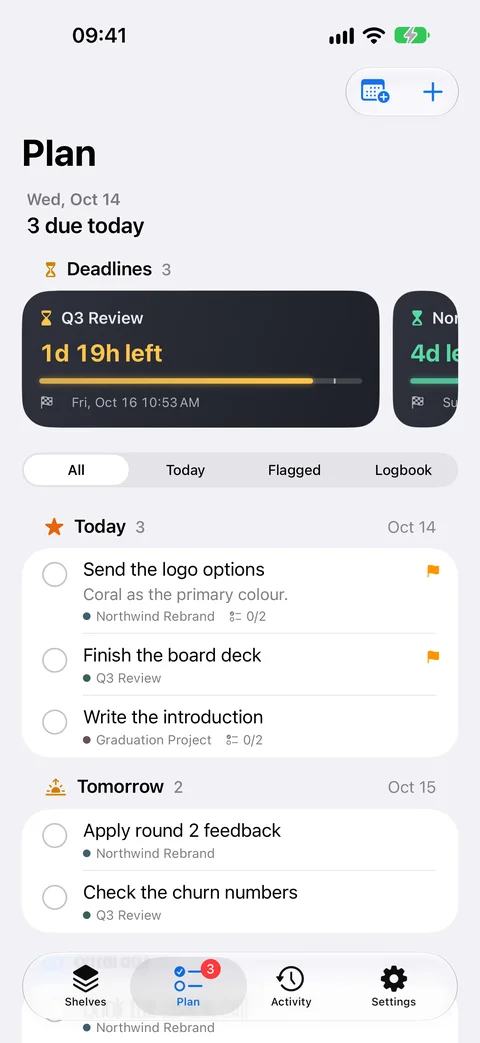
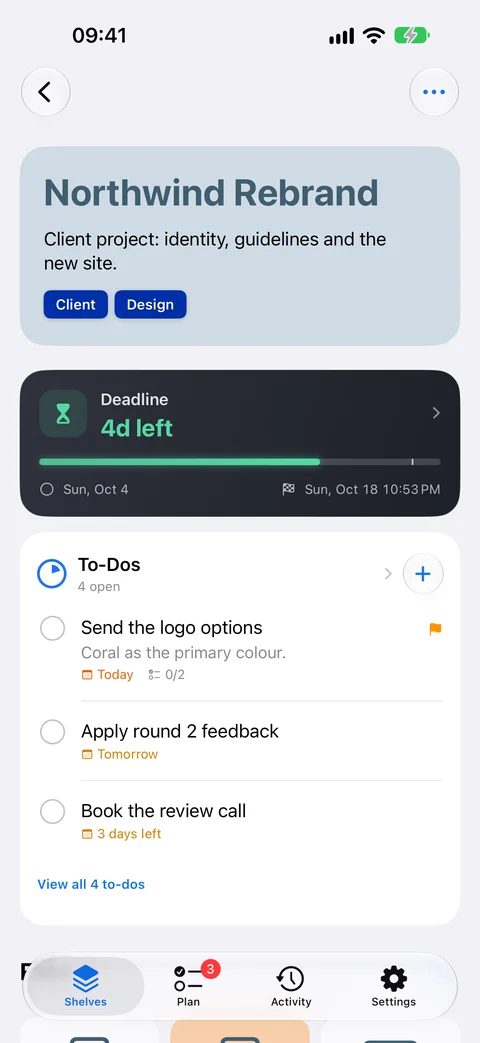
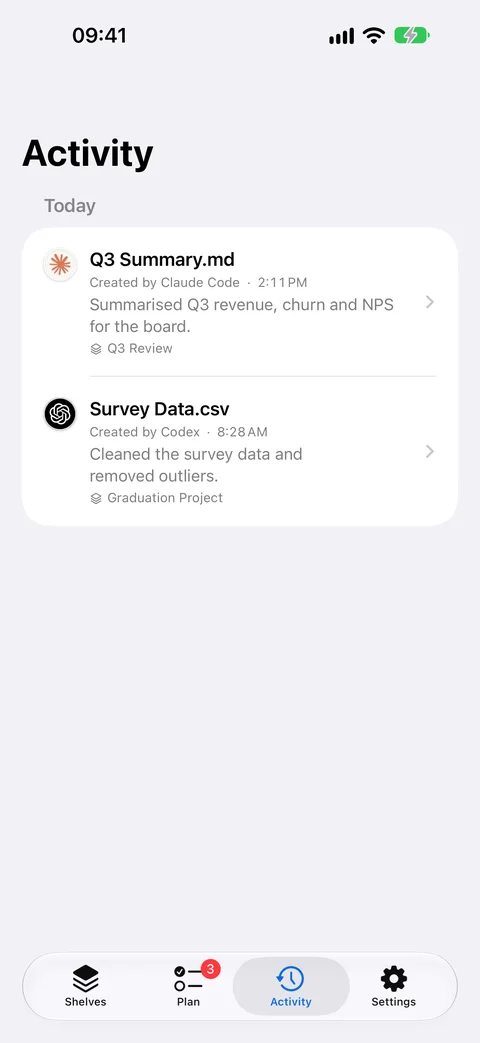
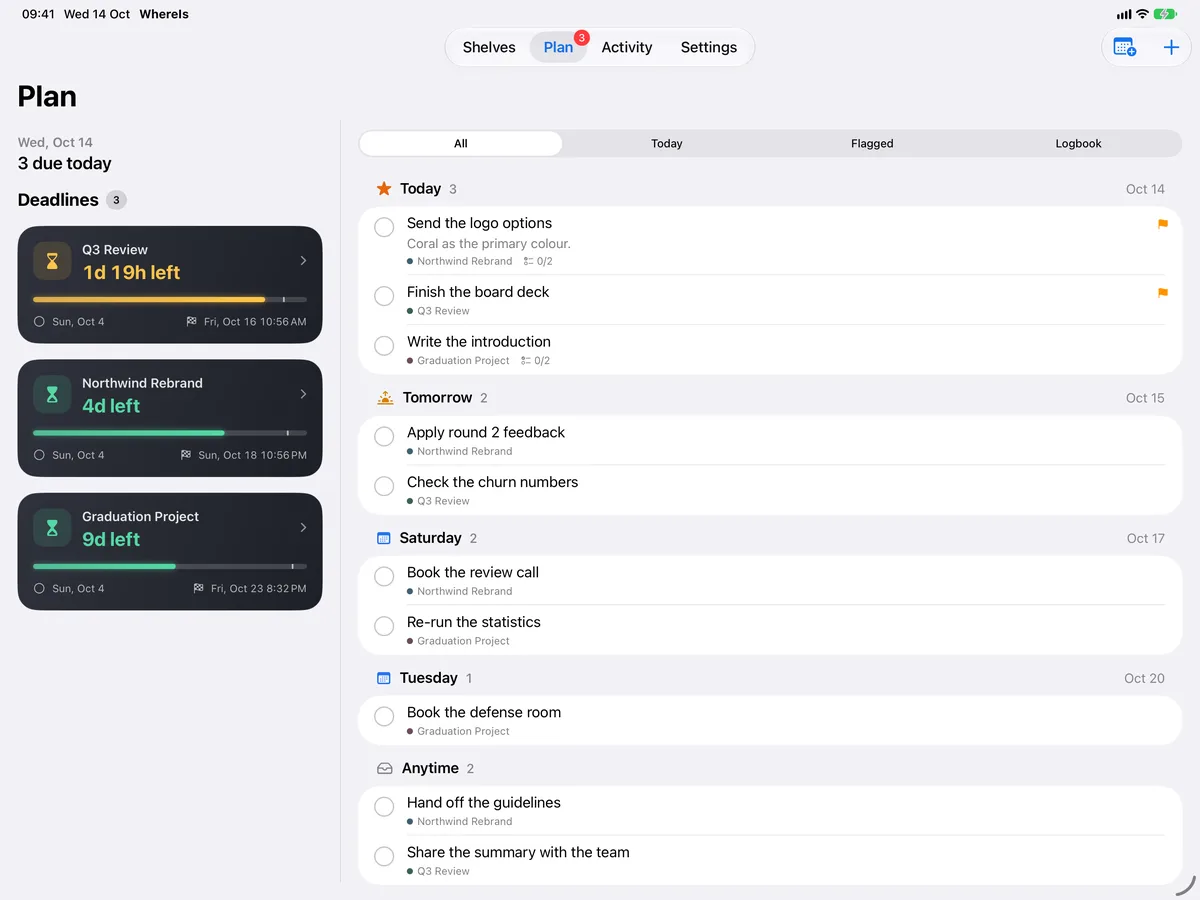
The companion to WhereIs for Mac. Shelves, deadlines, to-dos and tags sync through your private iCloud, so you can see what’s due, check things off and tidy up from your iPhone or iPad. Your files stay on your Mac.
Every shelf, with its countdown and to-dos
Everything due, from every shelf
Plans and references, editable on the go
What Claude Code and Codex made on your Mac
Works with WhereIs for MacAdd files on your Mac. iPhone and iPad show their names, locations and history; the files themselves stay on the Mac.
Reminders and widgetsDeadline countdowns on the Lock Screen, today’s to-dos on the Home Screen, reminders you can act on.
Private by designLock WhereIs with Face ID. No account, no WhereIs server, nothing collected.
One membershipWhereIs Pro works on Mac, iPhone and iPad with the same Apple Account. Deadlines and to-dos need Pro.
Coming soon to the App Store · iOS 26 or iPadOS 26 or later · requires WhereIs for Mac
Privacy
Private by design. Nothing to sign up for.
WhereIs has no account and collects none of your data. Your library lives on your Mac and in your own iCloud, and nothing about how you use it is sent to us.
No account
You never sign up or sign in. Open WhereIs and start.
No data collected
No analytics, tracking, ads or third-party SDKs. We don’t receive your files, your shelves or how you use them.
No WhereIs server
Your library is stored on your Mac. There’s nothing of yours on our side.
Your own iCloud
Sync uses the private database in your own iCloud account, which we can’t access.
Files stay where they are
Shelves keep references. WhereIs never uploads the contents of your files.
AI only when you say so
Claude Code and Codex reach your shelves only if you connect them, with the access you choose.
Purchases go through the App Store. Apple handles payment, and we never see it.Read the Privacy Policy
Pricing
Start free. Go Pro when you’re ready.
Every plan unlocks the same WhereIs Pro, on your Mac and on iPhone and iPad. Choose how you’d like to pay, or pay once and keep it for life.
Prices shown are US App Store prices in USD; the App Store shows your local price before you buy. The 14-day free trial is for eligible new subscribers to the quarterly or yearly plan, once per Apple Account. Subscriptions renew automatically unless cancelled at least 24 hours before the end of the period. Lifetime is a one-time purchase and doesn’t cancel an existing subscription. If your membership ends, your library stays; free limits apply only to new additions, and existing deadlines and to-dos keep reminding you.
Questions, answered.
Does WhereIs move or copy my files?
No. A shelf stores a reference to each file, so your originals stay where they are. Files only change place when you choose Copy or Move to New Folder (Pro), always after you pick the destination, and a move can be undone.
What if I move or rename a file in Finder?
Its shelves follow it. WhereIs uses macOS bookmarks, so a file stays on its shelves after it’s moved or renamed. If a file is deleted or only exists on another Mac, you can relink it.
Do I need Claude Code or Codex?
No. WhereIs is a complete file organizer on its own. WhereIs Pro adds workspaces and MCP for Claude Code, Codex and the Claude desktop app. Those apps, their accounts and any subscriptions are separate, and WhereIs doesn’t include AI credits.
Is anything uploaded?
There’s no WhereIs account and no WhereIs server. Your shelves sync through your private iCloud, and WhereIs doesn’t upload the contents of your files. If you connect an AI client, that client may send what it reads to its own service, according to its settings.
What’s the difference between the plans?
Nothing but how you pay. Quarterly, Yearly and Lifetime all unlock the same WhereIs Pro. Yearly costs about a third less than paying quarterly, and Lifetime is a single payment with no renewal.
Can I try Pro for free?
Yes. Eligible new subscribers can try the quarterly or yearly plan free for 14 days, once per Apple Account. Cancel during the trial and you won’t be charged. The App Store decides eligibility and shows it before you subscribe.
I subscribe. What happens if I buy Lifetime?
You get Lifetime right away, but your subscription isn’t cancelled automatically. Turn off renewal in your App Store subscriptions; WhereIs links you there from Membership.
What happens if my membership ends?
Nothing is deleted. Your shelves and files stay usable; free limits apply only to new additions. An interrupted move can always be finished, so files are never left between two folders.
What happens to my deadlines and to-dos if my membership ends?
They stay, and WhereIs still reminds you. You can check to-dos off, mark a deadline done, delete them or hide the list. Adding, editing, reordering and postponing need WhereIs Pro again.
Can an AI change my files without asking?
Organizing only changes references on your shelves, never the files on disk, and every change can be previewed and undone. Renaming originals, making copies, exporting and archiving wait for your approval at the bottom of the WhereIs window. You can also limit agents to search and read only.
Is the preview on this page the real app?
No. It’s a simulation of WhereIs for Mac that runs in your browser to show how it works, with every Pro feature turned on. The Mac app is what counts and may differ. Nothing you do there is uploaded, and the agents in it follow ready-made scripts.
Is there an iPhone or iPad app?
Yes, it’s coming soon. WhereIs for iPhone and iPad works with WhereIs for Mac: your shelves, deadlines, to-dos and tags sync through your private iCloud, and you can edit them on the go. Files are added and opened on the Mac and stay there. WhereIs Pro works on all three with the same Apple Account.
What do I need to run WhereIs?
macOS 26 or later on a Mac with Apple silicon. WhereIs follows your system language in English or Simplified Chinese.
Your files, on shelves.
Download WhereIs: File Organizer free on the Mac App Store. The iPhone and iPad app is coming soon.
Coming soon, free on the Mac App Store, with a companion app for iPhone and iPad.



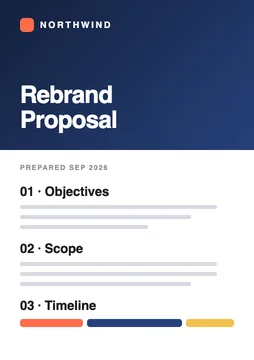 Rebrand Proposal FINAL (2).pdfDesktop
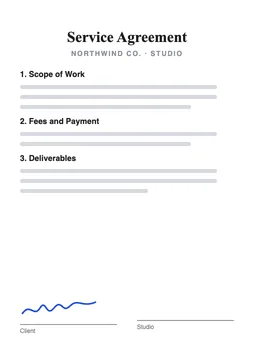 Service Agreement.pdfDownloads
 Brand Guidelines.pdfDownloads
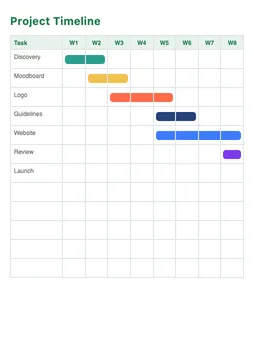 Project Timeline.xlsxDocuments › Clients › Northwind
 Moodboard.pngiCloud Drive › Design
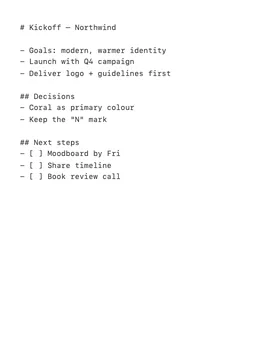 Kickoff Notes.mdMail › Attachments